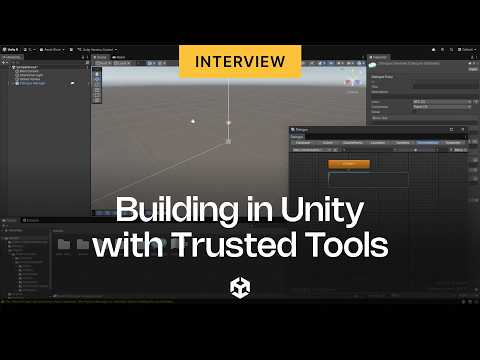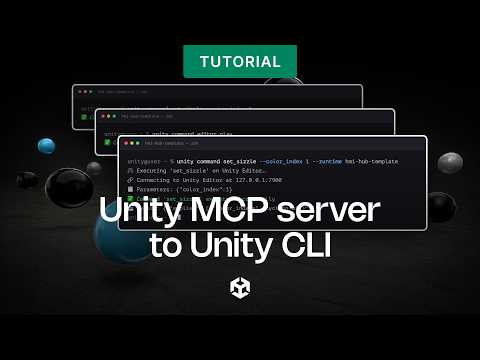
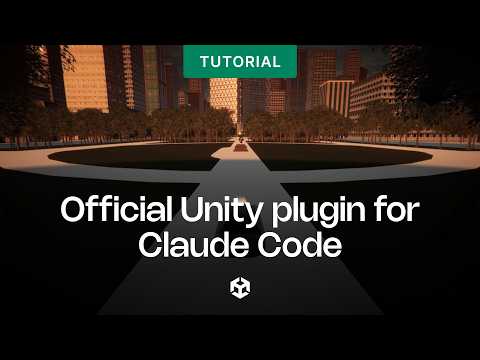
Getting started with Unity CLI
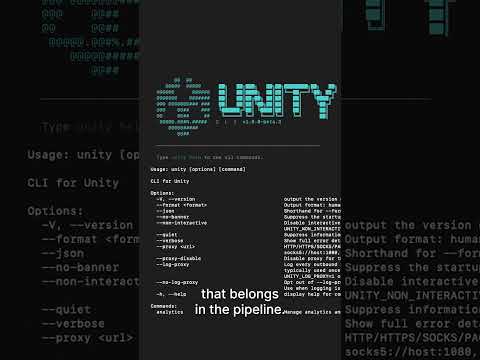
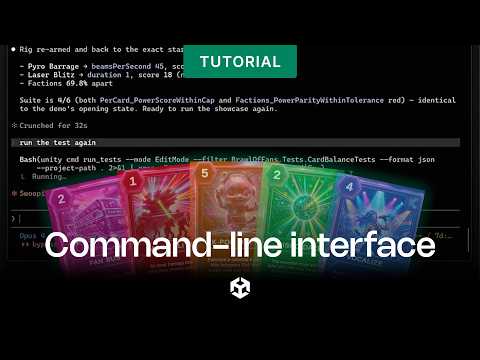
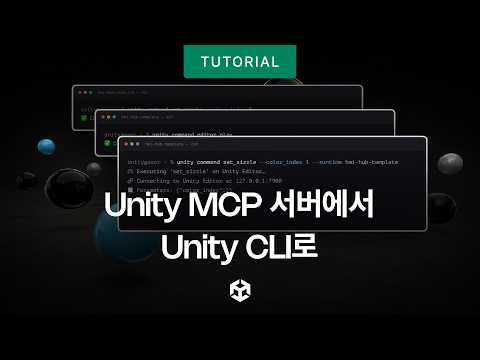
The Unity Editor’s visual interface is great for human developers, but interpreting all those UI elements creates a massive bottleneck for AI automation. This extra visual layer makes AI agents slow, error-prone, and expensive in tokens. The new Unity CLI and Unity Pipeline package fix this problem by letting AI interact directly with the Editor under the hood.
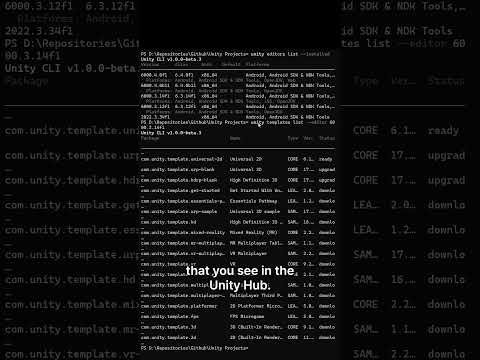
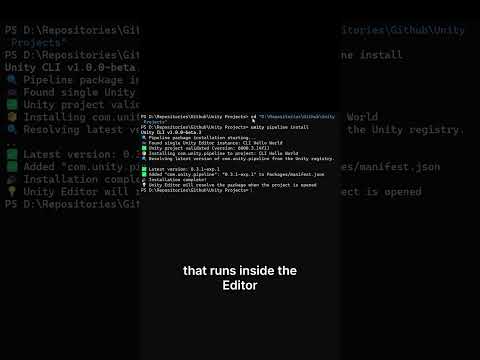
In this video, we'll cover how the two tools work together. The CLI handles your environment - installing editors, managing licenses, and opening projects. Meanwhile, the Pipeline package turns your running Editor into a local server that stays warm in memory, survives domain reloads, and can compile and run C# snippets on the main thread in milliseconds.
We’ll walk through the simple two-command install, show you how to read the command pattern so you never have to memorize syntax, and demonstrate live eval running code directly in the Editor. You’ll also see how any agent that runs shell commands (like Claude Code, Codex, Cursor, or Copilot) can drive Unity with no extra setup, and we'll answer the big question about what this all means for the Unity MCP.
🔗 Unity CLI documentation: https://on.unity.com/UnityCLI_Docs
🔗 Install the Unity CLI + Pipeline package: https://on.unity.com/UnityCLI_Docs
[00:00] Introduction
[1:14] How it works
[2:08] Installation
[2:56] Command anatomy
[4:06] What can it do?
[4:49] Agent access
[5:42] The Unity MCP
[6:26] Official Claude plugin
_______________
Stay connected with us:
Games Twitter/X: https://x.com/unitygames
Instagram: https://www.instagram.com/unitytechnologies/
Discord: https://discord.com/invite/unity
Discussions: https://discussions.unity.com/
LinkedIn: https://www.linkedin.com/company/unity/
Facebook: https://www.facebook.com/unity3d.in/
Bluesky: https://bsky.app/profile/unity.com
Company Twitter/X: https://x.com/unity
#Unity #UnityCLI

![[2D 게임 개발 꿀팁 시리즈] 2D 게임에 3D 오브젝트 쉽게 사용하는 방법](https://img.youtube.com/vi/8ytJW1I6Agg/hqdefault.jpg)
![[2D 게임 개발 꿀팁 시리즈] 메모리 절약 스프라이트 5가지](https://img.youtube.com/vi/-cxbULpRSXE/hqdefault.jpg)

![Cards: Tidy Up! [Demo Out Now]](https://img.youtube.com/vi/6DDIfmMYYFs/hqdefault.jpg)
![[2D 게임 개발 꿀팁 시리즈] 2D 배칭 조건](https://img.youtube.com/vi/5DstF95ojw0/hqdefault.jpg)





![[2D 게임 개발 꿀팁 시리즈] Runtime Sprite Atlas](https://img.youtube.com/vi/ocFwQ4sogDo/hqdefault.jpg)