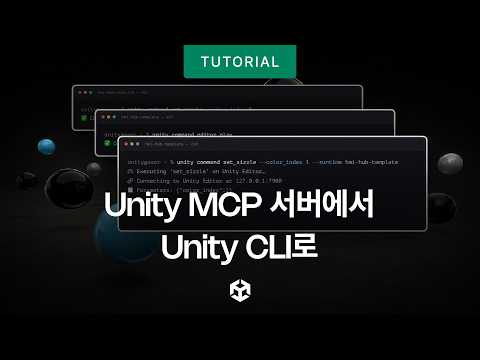
CLI and the Runtime server
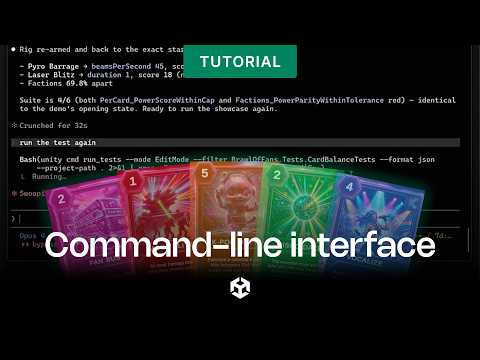
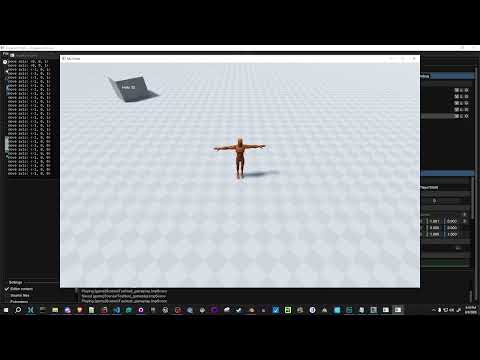
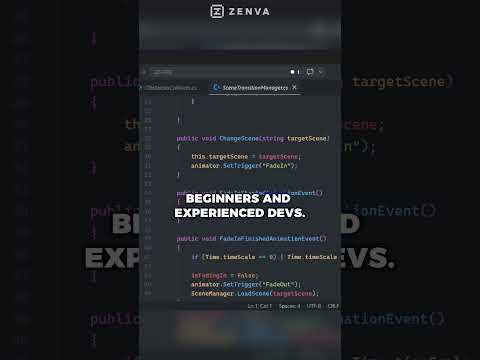
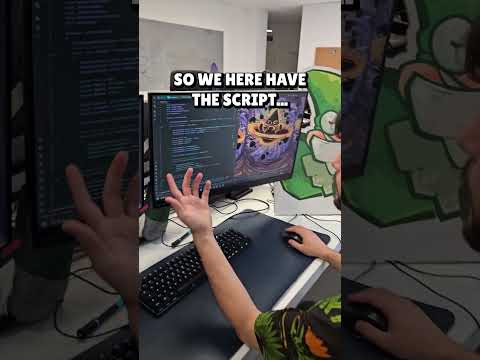
Drive Unity from your terminal, and reach straight into your running game. This is the Unity CLI: install editors, manage projects, and run arbitrary C# with no domain reloads. Paired with the Pipeline package, it turns Unity into a local server for both Edit mode and runtime, so you can change values in your live game while it's playing.
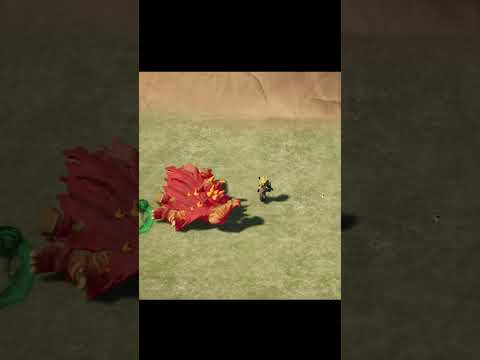
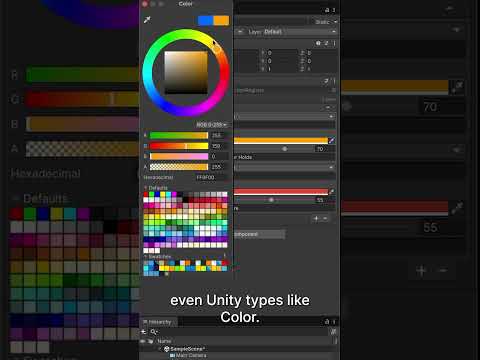
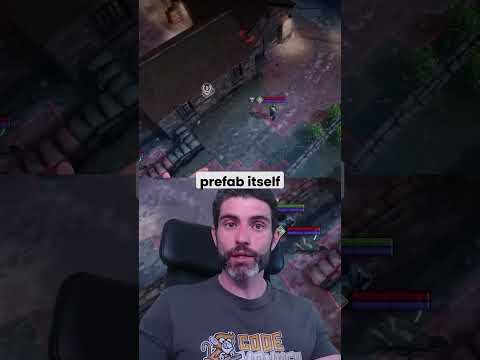
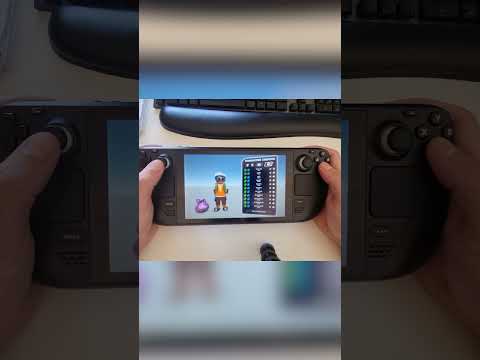
In this video we’ll use that to build a tool that captures in-game visuals for a trailer — test and tweak elements, change colors live, control the Cinemachine shot, set speed and height, and even control game speed to speed up iterations. All of it runs on runtime commands you specify and execute live, controlling the assets and setup in the running game.
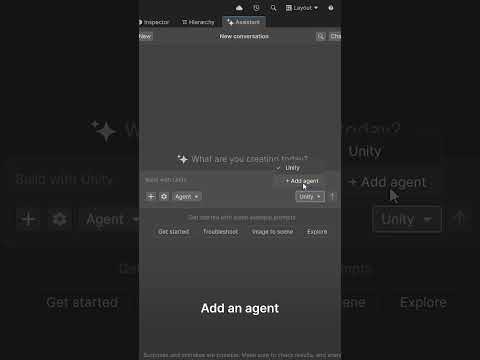
The UI sets the argument and fires the CLI command, and the pipeline package runs it live — so you can build a meaningful UI on top of your game, or simply prompt your agent to trigger commands and control your live game.
🔗 Learn more: https://docs.unity.com/en-us/unity-cli
[00:00] Drive Unity from your terminal
[00:17] Reach into your live game
[00:35] Build a trailer-capture tool
[01:10] UI or agent control, live
_______________
Stay connected with us:
Games Twitter/X: https://x.com/unitygames
Instagram: https://www.instagram.com/unitytechnologies/
Discord: https://discord.com/invite/unity
Discussions: https://discussions.unity.com/
LinkedIn: https://www.linkedin.com/company/unity/
Facebook: https://www.facebook.com/unity3d.in/
Bluesky: https://bsky.app/profile/unity.com
Company Twitter/X: https://x.com/unity
#Unity #Cinemachine #UnityCLI #RuntimeServer